> ## Documentation Index
> Fetch the complete documentation index at: https://mcpjam-docs-update-from-inspector-pr-955.mintlify.site/llms.txt
> Use this file to discover all available pages before exploring further.
# Multi-server connections
> Connect to multiple MCP servers with different transport methods
You can connect to MCP servers using all transports: STDIO, SSE, and Streamable HTTP. With OAuth 2 and Dynamic Client Registration (DCR) support.
## Registry explorer
Browse and connect to MCP servers from the official registry. The Registry tab provides:
* **Search and filter**: Find servers using fuzzy search with filters like `official:true`, `type:npm`, or `remote:true`
* **Server details**: View package information, remote connections, environment variables, and version history
* **One-click connect**: Install servers directly from the registry with pre-filled configuration
The registry data is cached locally for 24 hours and automatically refreshes in the background.
## Manage connections
You can connect to multiple MCP servers simultaneously. To manage connections, go to the "MCP Servers" tab in the MCPJam inspector.
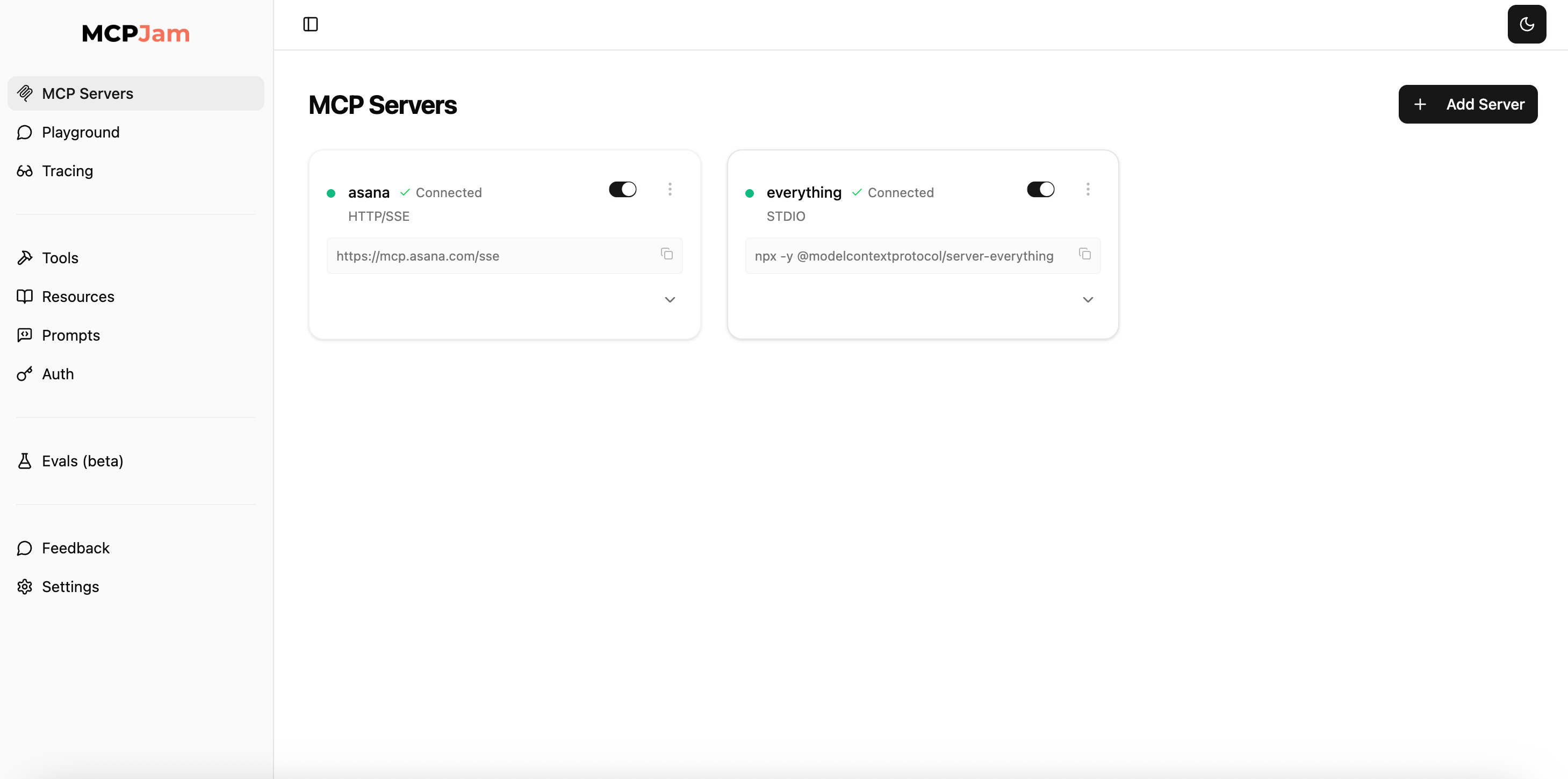 * Toggle MCP servers to enable or temporarily deactivate a server.
* Hit the 3 dots. You can reconnect, edit, or disconnect to a server.
* Click "View server info" to open a detailed modal showing server metadata, protocol version, capabilities, and instructions.
### Server info modal
View comprehensive server details in a dedicated modal dialog:
* **Server metadata**: Name, title, version, protocol version, and transport type
* **Capabilities**: Tools, prompts, and resources supported by the server
* **Instructions**: Server-provided instructions for AI assistants
* **Raw capabilities**: Full JSON of server and client capabilities (with copy button)
* **OpenAI Apps SDK**: For servers using the OpenAI Apps SDK, view widget metadata in a separate tab
### Server information
Each connected server card displays:
* **Server icon and version**: If provided by the server, the icon and version number appear in the card header
* **Connection status**: Real-time indicator showing connected, connecting, or failed status with retry count
* **Transport type**: Shows whether the server uses STDIO, SSE, or Streamable HTTP
Click "Show details" to expand additional server information:
* **Server capabilities**: Lists available features (Tools, Prompts, Resources)
* **MCP protocol version**: The protocol version the server implements
* **Instructions**: Server-provided instructions for AI assistants
* **Documentation link**: Direct link to the server's documentation if available
### OpenAI app metadata
Servers that provide OpenAI-compatible tool metadata display an OpenAI logo indicator. Expanding these servers shows two tabs:
* **Info tab**: Standard server information and capabilities
* **OpenAI Tool Metadata tab**: Detailed metadata for each tool including read/write permissions and widget configuration
## STDIO servers
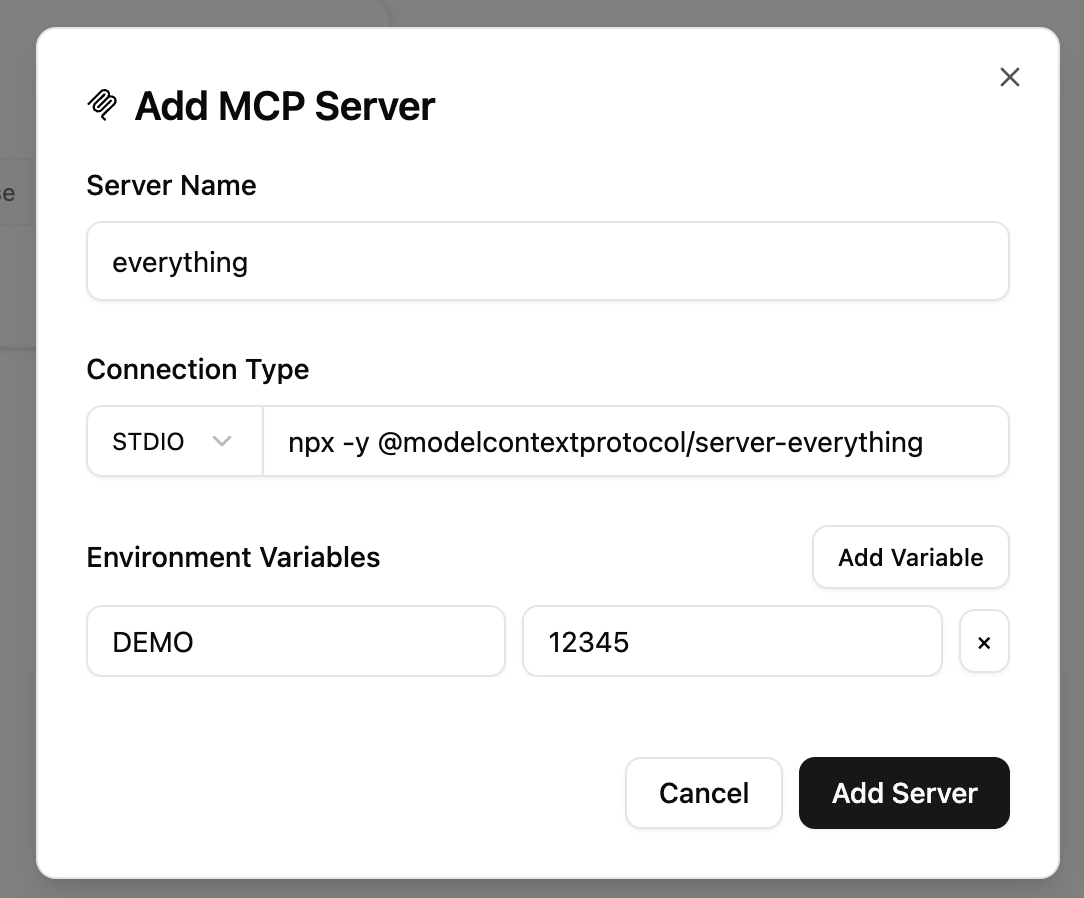
Connect to STDIO with commands. Commands vary based on what language your MCP server is built with. For example, connecting to an MCP server built with Node might look like:
```bash theme={null}
node /path/to/your/server.js
```
For local development, always use absolute paths (e.g.,
`/Users/yourname/project/server.py`) to avoid path resolution issues.
* Toggle MCP servers to enable or temporarily deactivate a server.
* Hit the 3 dots. You can reconnect, edit, or disconnect to a server.
* Click "View server info" to open a detailed modal showing server metadata, protocol version, capabilities, and instructions.
### Server info modal
View comprehensive server details in a dedicated modal dialog:
* **Server metadata**: Name, title, version, protocol version, and transport type
* **Capabilities**: Tools, prompts, and resources supported by the server
* **Instructions**: Server-provided instructions for AI assistants
* **Raw capabilities**: Full JSON of server and client capabilities (with copy button)
* **OpenAI Apps SDK**: For servers using the OpenAI Apps SDK, view widget metadata in a separate tab
### Server information
Each connected server card displays:
* **Server icon and version**: If provided by the server, the icon and version number appear in the card header
* **Connection status**: Real-time indicator showing connected, connecting, or failed status with retry count
* **Transport type**: Shows whether the server uses STDIO, SSE, or Streamable HTTP
Click "Show details" to expand additional server information:
* **Server capabilities**: Lists available features (Tools, Prompts, Resources)
* **MCP protocol version**: The protocol version the server implements
* **Instructions**: Server-provided instructions for AI assistants
* **Documentation link**: Direct link to the server's documentation if available
### OpenAI app metadata
Servers that provide OpenAI-compatible tool metadata display an OpenAI logo indicator. Expanding these servers shows two tabs:
* **Info tab**: Standard server information and capabilities
* **OpenAI Tool Metadata tab**: Detailed metadata for each tool including read/write permissions and widget configuration
## STDIO servers
Connect to STDIO with commands. Commands vary based on what language your MCP server is built with. For example, connecting to an MCP server built with Node might look like:
```bash theme={null}
node /path/to/your/server.js
```
For local development, always use absolute paths (e.g.,
`/Users/yourname/project/server.py`) to avoid path resolution issues.
 ### Environment variables
You can configure environment variables with STDIO. Click "Add Variable" in the Environment Variables section. This is often used to pass dynamic values like API tokens to a STDIO server.
## SSE / Streamable HTTP servers
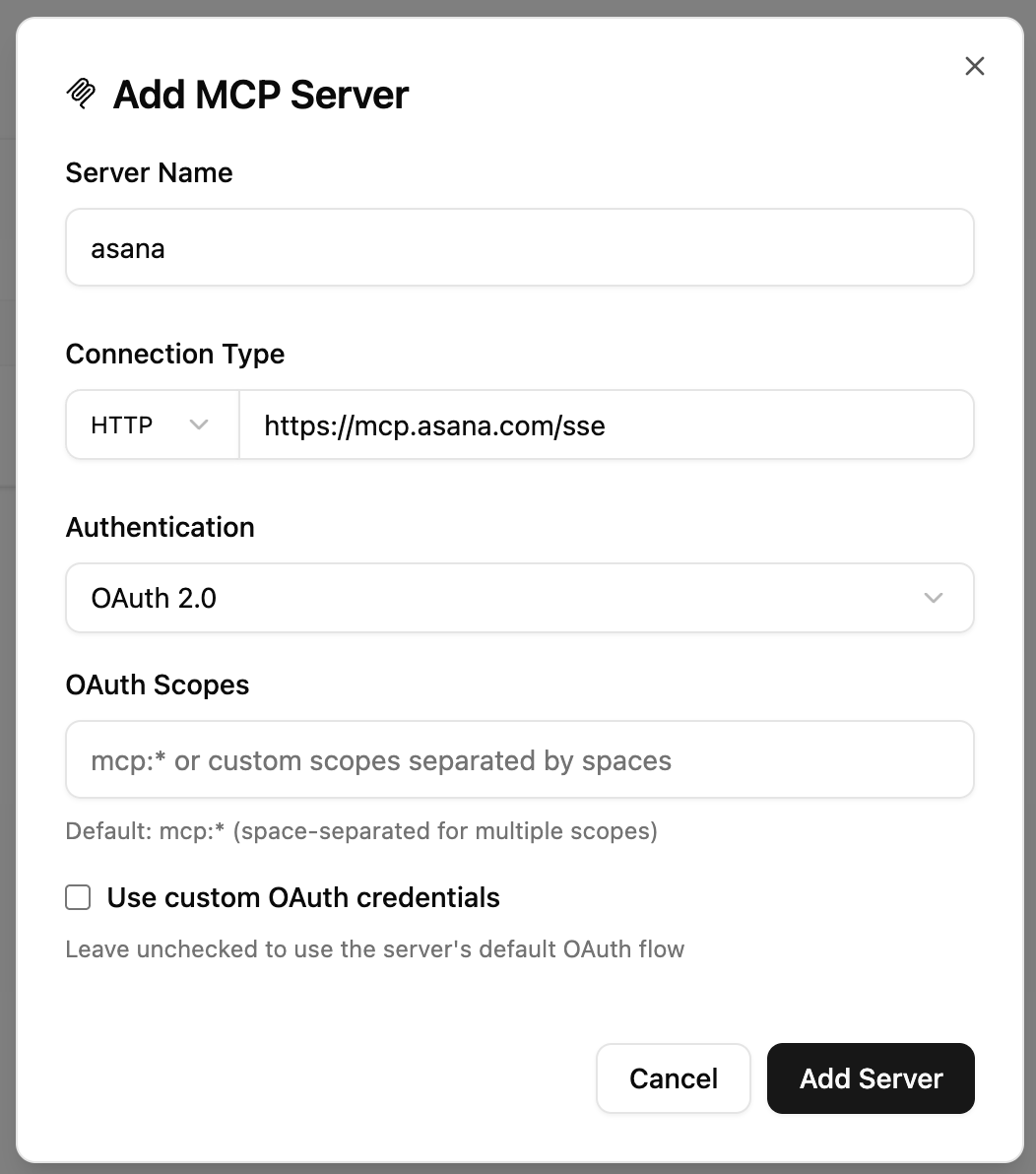
Connect to SSE and Streamable HTTP servers. To do this, click the transport dropdown and select `SSE/HTTP`. They connect the same way: pass in a URL.
SSE server URLs typically end with `/sse` and Streamable HTTP servers typically end with `/mcp`.
### Environment variables
You can configure environment variables with STDIO. Click "Add Variable" in the Environment Variables section. This is often used to pass dynamic values like API tokens to a STDIO server.
## SSE / Streamable HTTP servers
Connect to SSE and Streamable HTTP servers. To do this, click the transport dropdown and select `SSE/HTTP`. They connect the same way: pass in a URL.
SSE server URLs typically end with `/sse` and Streamable HTTP servers typically end with `/mcp`.
 ### OAuth 2
MCPJam is compliant with the MCP OAuth spec and Dynamic Client Registration (DCR). You can:
1. Choose `No Authentication`
2. Choose `Bearer Token`. Use this if you already have an API token and don't need to go through DCR.
3. Choose `OAuth 2.0`. This will take you through [MCP Authorization](https://modelcontextprotocol.io/specification/draft/basic/authorization) to fetch a bearer token. You can also configure OAuth Scopes or custom OAuth credentials.
## Tunneling
Expose your local MCP servers over HTTPS for remote access. This lets you share your servers with external clients and applications without deploying them.
### Create a tunnel
1. Go to the **MCP Servers** tab
2. Click **Create Tunnel** in the header
3. The tunnel URL is automatically copied to your clipboard
Once created, each connected server gets its own tunnel URL. Click **Copy Tunnel Url** on any server card to copy its specific endpoint.
### Close a tunnel
Click **Close Tunnel** in the header to stop remote access. The tunnel closes immediately and all remote connections are terminated.
Tunnel URLs are publicly accessible without authentication. Only create tunnels when you need remote access, and close them when done.
### OAuth 2
MCPJam is compliant with the MCP OAuth spec and Dynamic Client Registration (DCR). You can:
1. Choose `No Authentication`
2. Choose `Bearer Token`. Use this if you already have an API token and don't need to go through DCR.
3. Choose `OAuth 2.0`. This will take you through [MCP Authorization](https://modelcontextprotocol.io/specification/draft/basic/authorization) to fetch a bearer token. You can also configure OAuth Scopes or custom OAuth credentials.
## Tunneling
Expose your local MCP servers over HTTPS for remote access. This lets you share your servers with external clients and applications without deploying them.
### Create a tunnel
1. Go to the **MCP Servers** tab
2. Click **Create Tunnel** in the header
3. The tunnel URL is automatically copied to your clipboard
Once created, each connected server gets its own tunnel URL. Click **Copy Tunnel Url** on any server card to copy its specific endpoint.
### Close a tunnel
Click **Close Tunnel** in the header to stop remote access. The tunnel closes immediately and all remote connections are terminated.
Tunnel URLs are publicly accessible without authentication. Only create tunnels when you need remote access, and close them when done.